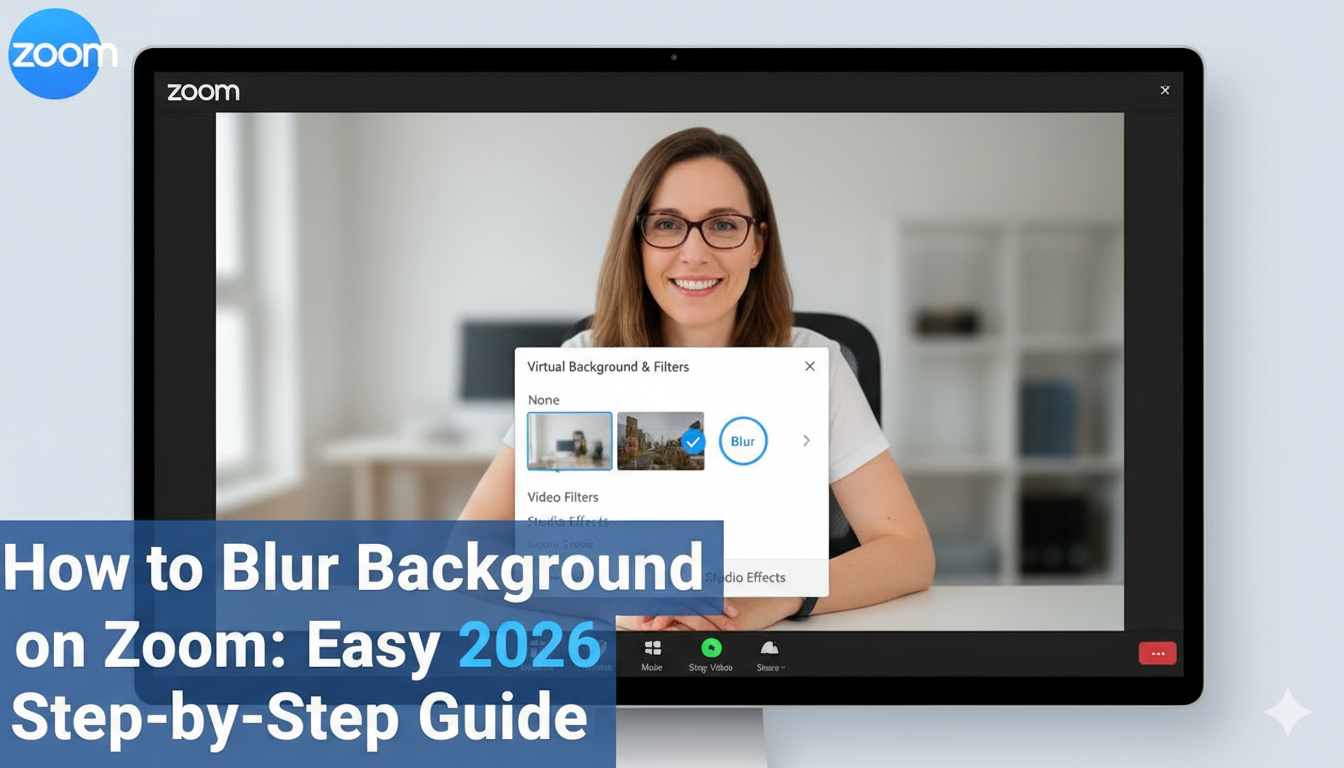
Have you ever joined a video call only to realize your laundry is piled up behind you? We have all been there! It can be a bit stressful when your room isn’t ready for a professional meeting. Luckily, knowing how to blur background on zoom is a total game-changer. It is a quick way to look polished and keep your privacy safe.
In this guide, I will show you exactly how to hide your messy office or busy living room. We will look at how to do this on your computer and your phone. By the time you finish reading, you will be a Zoom pro! Plus, I will share some expert tips to make your video look even better. Let’s dive into the simple steps to make your next meeting stress-free.
Why You Should Use the Blur Background Feature
Using a blur is one of the best ways to keep the focus on you. It removes distractions like moving pets or bright windows. This is a “people-first” feature that helps everyone stay focused on the conversation. I personally find it much better than a fake beach background because it looks more natural. It gives you a professional edge without needing a fancy studio.
Basic System Requirements for Zoom Blur in 2026
Before we start, your device needs to be strong enough to handle this effect. Zoom uses smart tech to find your outline and soften the rest. If your device is too old, the option might not show up.
| Requirement | Desktop (PC/Mac) | Mobile (iOS/Android) |
| Zoom Version | 5.5.0 or higher | 5.6.6 or higher |
| Processor | Intel i3 (8th Gen) or better | 8-core (Snapdragon 835+) |
| RAM | 4GB Minimum | 3GB Minimum |
| Operating System | Windows 10/11 or macOS 10.13+ | Android 8.0+ or iOS 12+ |
How to Blur Background on Zoom Before a Meeting Starts
It is always smart to set up your video before others see you. This helps you avoid any “oops” moments. Follow these simple steps on your desktop app:
- Open the Zoom app and sign in to your account.
- Click on your Profile Picture in the top right corner.
- Choose Settings (the little gear icon).
- On the left side, click Background & Effects.
- Look for the Blur option under the Virtual Backgrounds tab.
- Click it, and you will see a preview of your blurred room instantly!
How to Blur Background on Zoom During a Live Call
Did you forget to turn on the blur before joining? Don’t worry! You can fix it while you are talking. It only takes a few seconds and won’t interrupt your audio.
- Look at the bottom of your Zoom window for the Stop Video icon.
- Click the small upward arrow ( ^ ) right next to it.
- A menu will pop up. Select Blur My Background.
- Your video will instantly soften, hiding everything behind you.
Setting Up Zoom Blur on Your Mobile Phone
Many of us take meetings on the go using the Zoom mobile app. Whether you are on an iPhone or an Android, the steps are very similar. Here is how you do it:
- While in a meeting, tap your screen to see the controls.
- Tap the More button (the three dots) in the bottom right corner.
- Select Backgrounds & Effects (or Virtual Background on some Androids).
- Tap the Blur option.
- Tap Close to return to your meeting with a private background.
Troubleshooting: Why Can’t I See the Blur Option?
If you are looking for the blur button but it isn’t there, don’t panic. There are a few common reasons for this. First, check if your Zoom app needs an update. Old versions don’t always have the latest features. Second, make sure your computer meets the hardware requirements listed in our table above. Sometimes, signing out and signing back in can also make the option appear.
Tips for the Perfect Blur Effect
To get the best results, good lighting is your best friend. If your room is too dark, Zoom might accidentally blur your ears or hair! Try to sit facing a window or a lamp. Also, try to wear clothes that are a different color than your wall. This helps the AI see exactly where you end and the background begins. These small tweaks make a huge difference in how professional you look.
Using Virtual Backgrounds vs. Blurring
You might wonder if you should use a picture of an office instead of a blur. Both are great! A blur is perfect for a subtle, clean look. A virtual background is better if you want to hide a truly messy room or a boring wall. Zoom even lets you upload your own photos. Just remember to keep it professional for work calls!
Updating Zoom for the Best Experience
Zoom releases new updates all the time to fix bugs. To check for updates, click your profile picture and select Check for Updates. Keeping your app current ensures that the how to blur background on zoom feature works smoothly every time. It also keeps your meetings secure and fast.
Summary and Conclusion
Mastering how to blur background on zoom is a simple way to boost your confidence. It protects your privacy and helps you stay professional in any setting. Whether you use a computer or a phone, the steps are easy to follow. Remember to check your lighting and keep your app updated for the best results!
Now that you know these tricks, you never have to worry about a messy room again. Why not try it out in your next call? You might be surprised at how much better you feel when your background is clean and simple.
Frequently Asked Questions (FAQs)
1. Is it free to use the blur background on Zoom?
Yes! The blur feature is free for everyone, even if you don’t have a paid subscription.
2. Will the blur stay on for my next meeting?
Yes, Zoom usually remembers your choice. If you blurred your last meeting, it will stay blurred for the next one.
3. Does blurring my background use more battery?
Yes, it does. Since your computer has to work harder to process the video, your battery might drain a little faster.
4. Can I use blur on a Chromebook?
Yes, but only if you use the Zoom Progressive Web App (PWA). The standard browser version might not support it.
5. Why is my hair getting blurred too?
This usually happens because of low lighting or a background that is the same color as your hair. Try adding more light!
About the Author